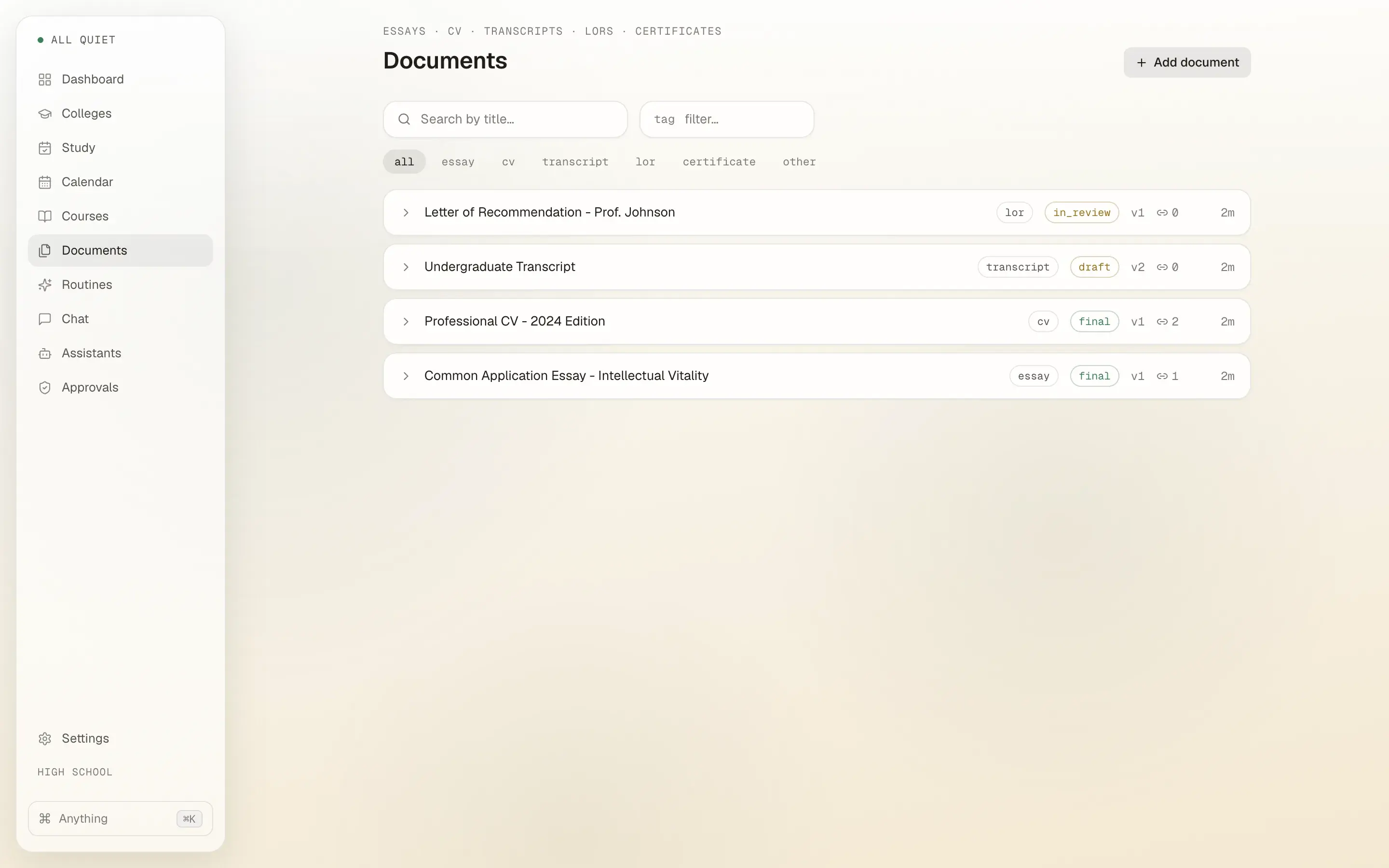
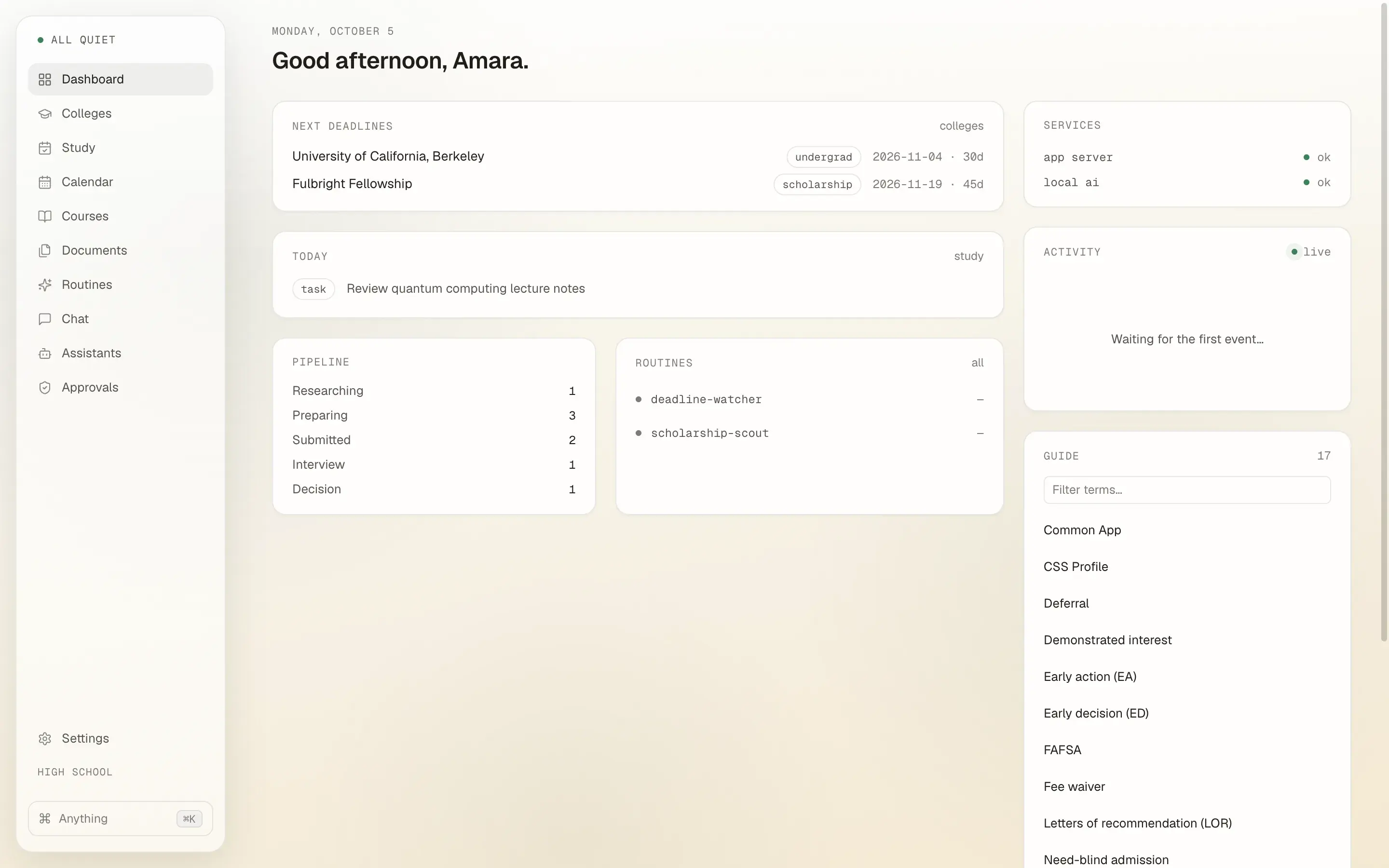
How it works
A little setup, then a calmer morning.
- Download it and open it.
Nothing else to set up. Pick your school stage. You can change it later.
- Add what matters to you.
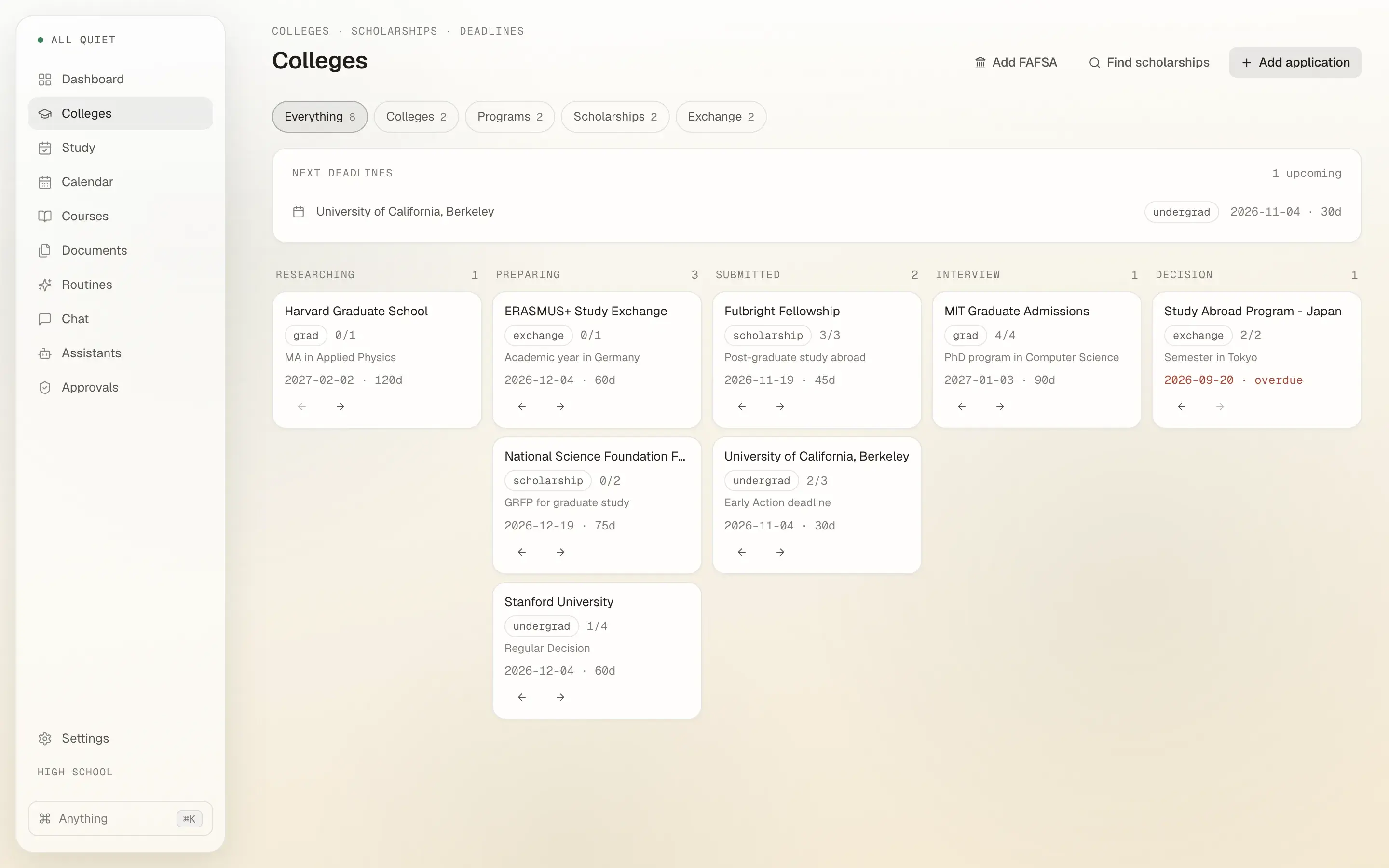
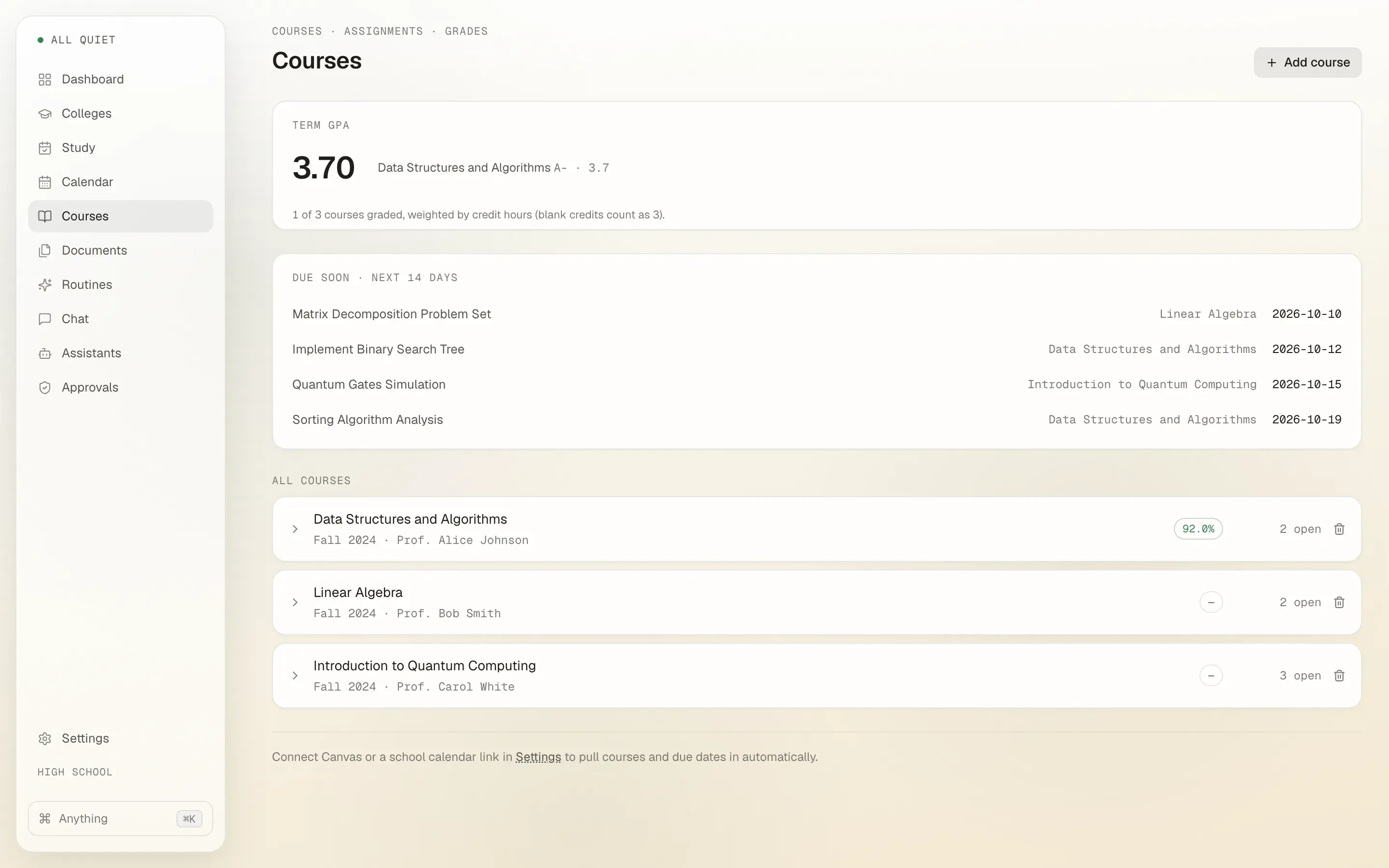
Type in your classes and the places you are applying, or pull your courses in from Canvas or Moodle.
- Start with today.
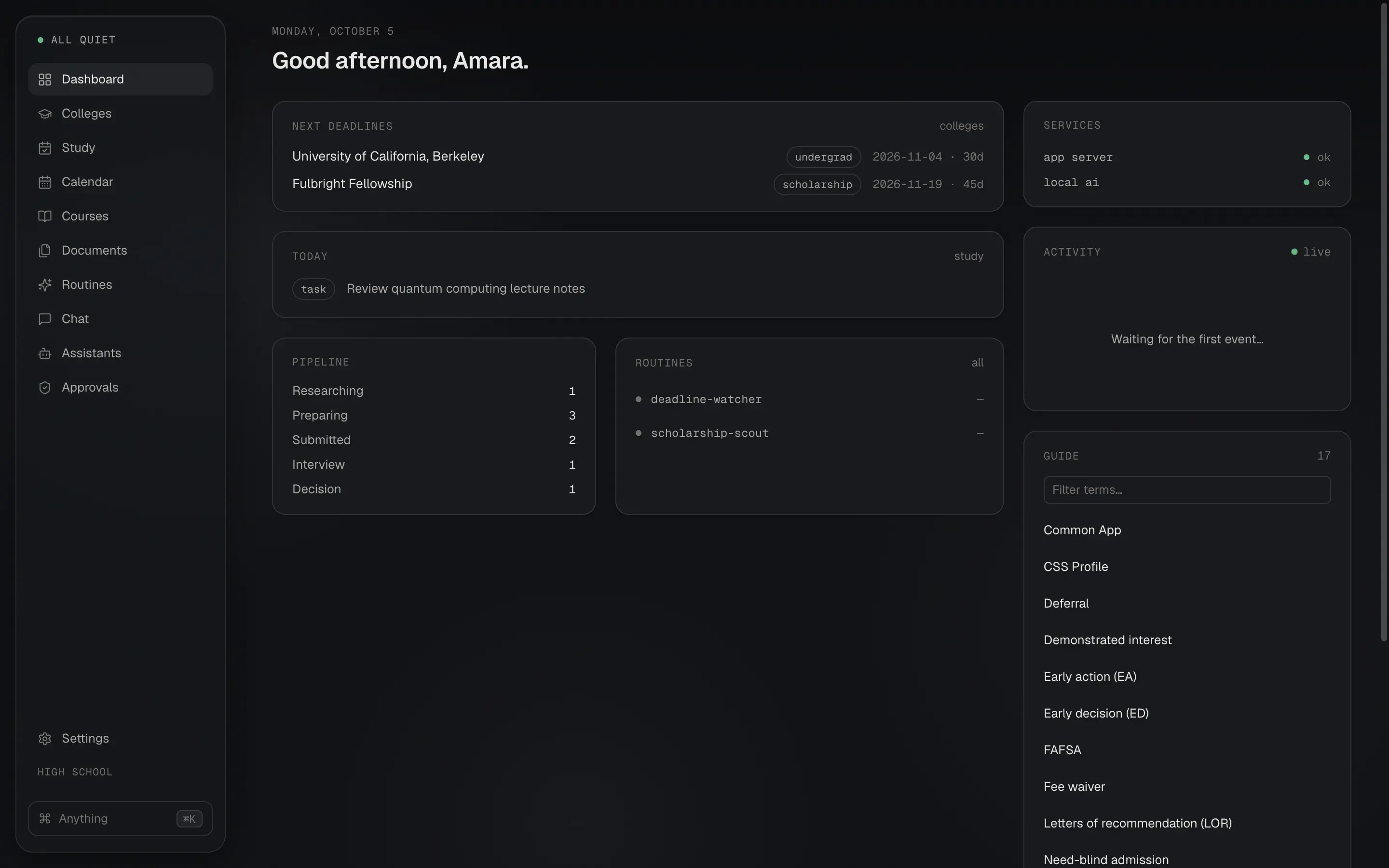
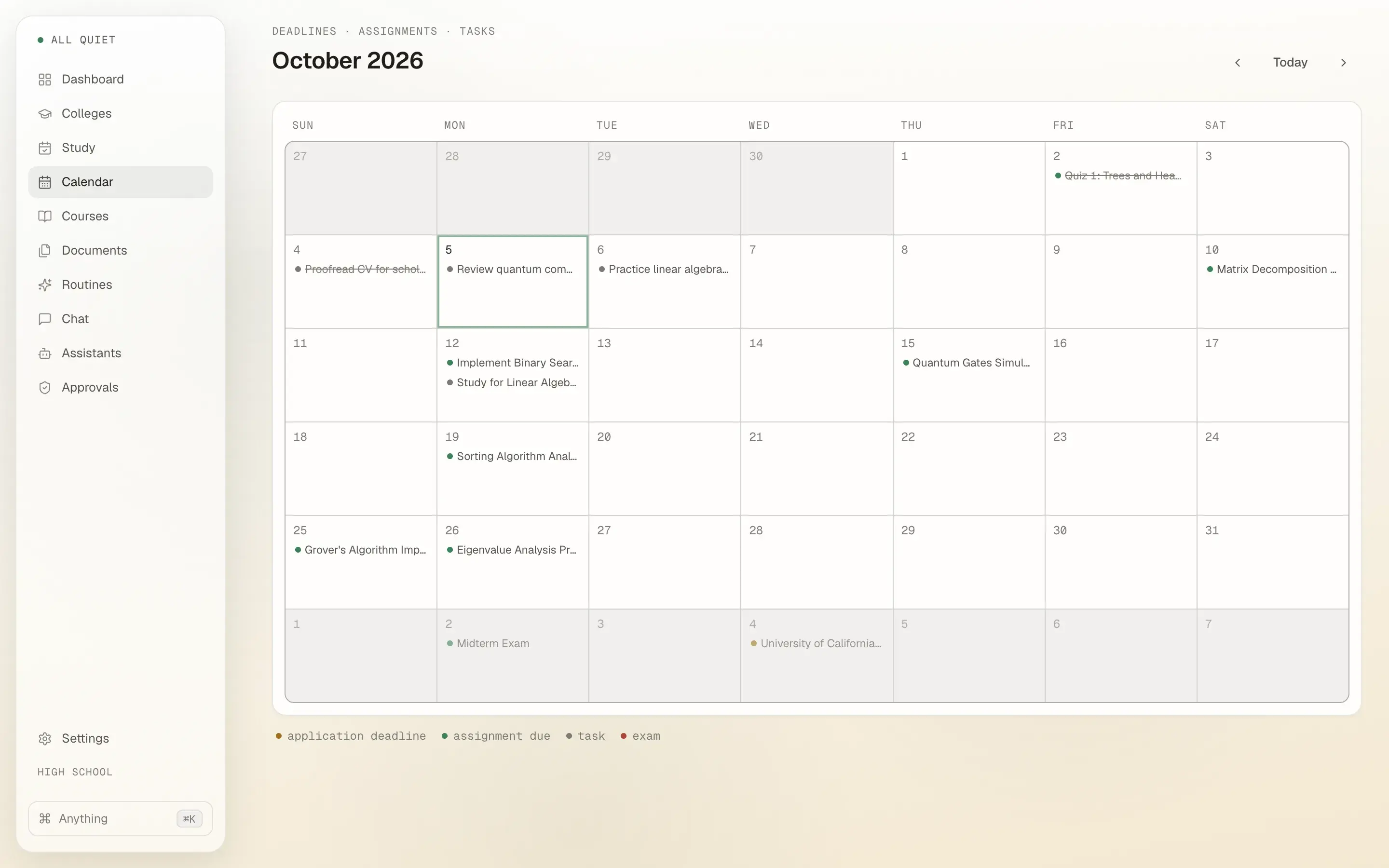
Open the dashboard in the morning. It shows what is due and what to do today.
Who it is for
For you, and whoever helps.
For students
Keep applications, classes, essays, and deadlines in one place, on your own computer.
For parents
Sit beside your student and look at the same screen. Nothing to sign up for, and their information stays on that computer.
For counselors
In a meeting, a student can open their list and you can go through the deadlines together. Then they keep going at their own pace.
Nothing leaves your computer.
Your information stays in one folder, as simple files. The AI runs on your computer too. No cloud copies, and no company server.
Questions.
Short answers here. The long ones are in the privacy policy and terms.
Is it free?
Yes, free during early access. Join the waitlist to get the download link. The app needs no account, and there is nothing to pay today. The installers are licensed under the Business Source License 1.1, for personal, non-commercial, and educational use.
Does it need the internet?
Not after setup. The AI on your computer is a one-time download in Settings: 2.5 GB is recommended, or 400 MB for older computers. Canvas and the scholarship scout use the internet only while they run.
Where does my information go?
It stays on your computer, in a folder called ~/.academic-os by default, as simple files. Backup copies it to any folder you pick. Restoring saves a safety copy first. Deleting the folder deletes everything.
Why does my computer show a warning?
That is normal. The app is not yet registered with Apple or Microsoft, so you see a warning once. On a Mac, close it, then open System Settings, Privacy & Security, and choose Open Anyway. On Windows, click More info, then Run anyway.
Do I need Canvas?
No. You can add courses and assignments yourself, paste a school calendar link, or connect Canvas or Moodle. Synced records never overwrite the status, grade, or notes you set yourself.
Does it work with Blackboard, Moodle, or Brightspace?
Canvas and Moodle sync fully: courses, assignments, quiz deadlines, grades, and what you have turned in. For Canvas you paste a personal access token (a code you copy from Canvas). For Moodle you sign in once with your school username and password; the app swaps them for a token and never keeps the password. Blackboard, Brightspace, Schoology, and Google Classroom (through Google Calendar) can share due dates through the private calendar link each of them gives students. Those schools open their systems only to apps the school approves, so grades from them are not available yet.
What school stage is it for?
Any of them: high school, college, a gap year, grad school, or beyond. Pick one when the app first opens. You can change it later in Settings.
Do reminders work on Windows or Linux?
Reminder notifications are Mac only today. On every platform, your dashboard, calendar, and to-do list show the same deadlines.
Will an update erase my information?
No. New versions install over older ones, and your information folder stays as it is.
Get Academic OS.
Free during early access, for Mac, Windows and Linux. Join the waitlist to get the download link. We will also email you about new versions.
Join the waitlist (opens in a new tab)What leaves the machine, and what never does.
Files, notes, grades and the local AI stay on disk. Dashed lines run only when you turn that feature on. The solid line is the license check, which carries no identifier. The privacy policy covers each one.
Scroll sideways to see the network side.
Questions?
Stuck? That is fine. Start here.
Pick the answer you need right now. If something is not working, you can tell us there too.
Reading GitHub needs no account. Posting a question or report needs a GitHub account.