Getting started in 10 minutes
Guide
Start small. You can add more whenever you are ready.
- Download Academic OS for your computer.
Go to the download section and choose Mac, Windows, or Linux.
- On a Mac, allow the first launch.
You will see a warning once. That is normal: the app is not yet registered with Apple. Double-click it, close the warning, then open System Settings, Privacy & Security, and choose "Open Anyway".
- On Windows, allow the first launch.
If SmartScreen stops it, that is normal. Click "More info", then "Run anyway".
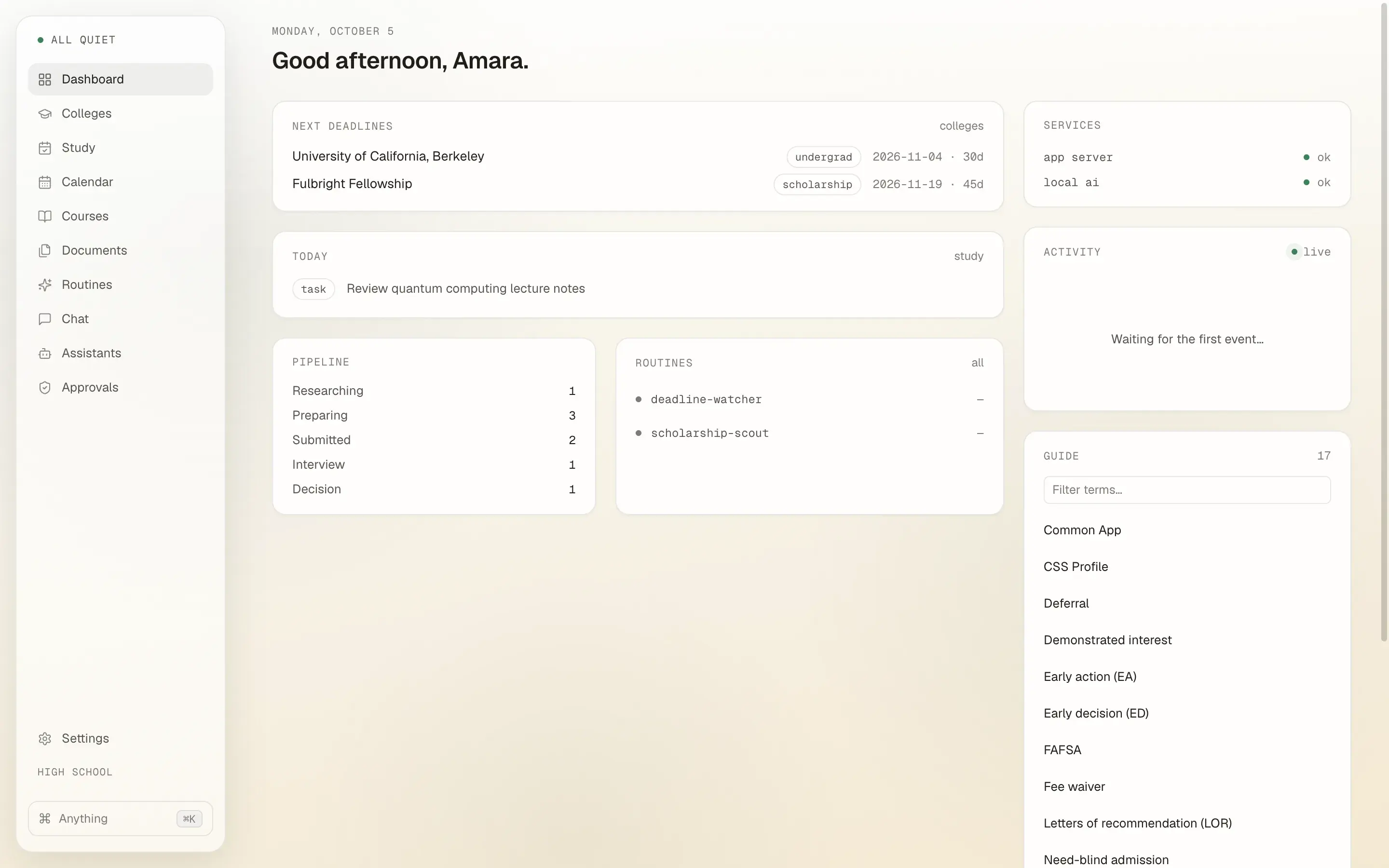
- Pick your school stage.
Open Settings and choose where you are: High school, Undergrad, Gap year, Grad school, or Beyond. This changes the names and checklists you see first.
- Add your first thing to track.
Add a course from Courses, or add a college, program, scholarship, or other application from the board.
- Optional: download local AI in Settings.
Choose the 2.5 GB recommended model, or the 400 MB model for an older computer. You can use the app without it. The AI powers the essay coach and syllabus reading.
- Know where your information lives.
Your information stays on your computer, in
~/.academic-osunless you chose another folder. Deleting the app does not delete that folder. - Make a backup.
In Settings, choose a backup folder and select Back up now. You can also copy
~/.academic-osyourself.
Stuck? Read the questions and answers.